
Plausible takes about fifteen minutes to set up, and most of that is deciding which optional measurements you want switched on. No tag manager, no cookie banner, no consent prompt. This is how to set up Plausible Analytics from a blank account to a dashboard your team can read, with the parts most guides skip: the WordPress plugin, custom events and properties, the proxy for ad blockers, Search Console, and the API.
I’ve installed Plausible on more sites than I can count, from two-page landing sites to a mid-size store, and I redid one of them last week because Plausible changed its tracking snippet in October 2025. So this guide reflects the current script, not the data-domain one you’ll still see quoted in older tutorials. If you’re still weighing it against other tools, my privacy-first analytics tools roundup covers the alternatives; this article assumes you’ve picked Plausible and want it running properly.
What you need before you start
- A site you can edit: either access to the
<head>, a CMS with a custom-code field, or a WordPress install where you can add plugins. - Fifteen minutes for the basics, closer to forty-five if you set up goals, custom properties and the proxy in the same sitting.
- An email address. That’s it for the account. Plausible’s free trial runs 30 days, no credit card is requested at signup, and nothing converts to a paid subscription on its own. If you do nothing, the dashboard locks at the end of the trial and Plausible stops counting; the stats it has already collected are kept, and the dashboard opens again the moment you subscribe, with nothing reset.
One clarification I make with every client: this guide is for Plausible’s hosted service at plausible.io. The self-hosted Community Edition runs on Docker and ClickHouse and is a different afternoon’s work. If self-hosting matters to you, I compare the two approaches in Plausible vs Umami.
Create the account and add your site
Register a Plausible account at plausible.io with your name, email and a password. Plausible emails you a four-digit code to confirm the address, and the trial starts the moment you enter it. During the trial you get every Business-plan feature, which matters later because custom properties, revenue tracking and the Stats API all sit on that tier.
The first thing the onboarding asks for is a domain name. Enter it bare: yourdomain.com, without https:// and without www.. Two things about that field that trip people up:
- Subdomains are included by default. Add
yourdomain.comonce and use the same snippet ondocs.yourdomain.comandapp.yourdomain.com; sessions carry across them. Only addblog.yourdomain.comas a separate site if you genuinely want a separate dashboard for it. - The domain works like a site ID. If you run country domains (
example.de,example.nl) and want them in one dashboard, you can point all of them at a single Plausible site. Plausible’s add-website notes cover the setup; I only recommend it when nobody will ever need per-domain numbers.
Pick the reporting timezone here too; every “yesterday” comparison you ever make depends on it.
Add the tracking snippet
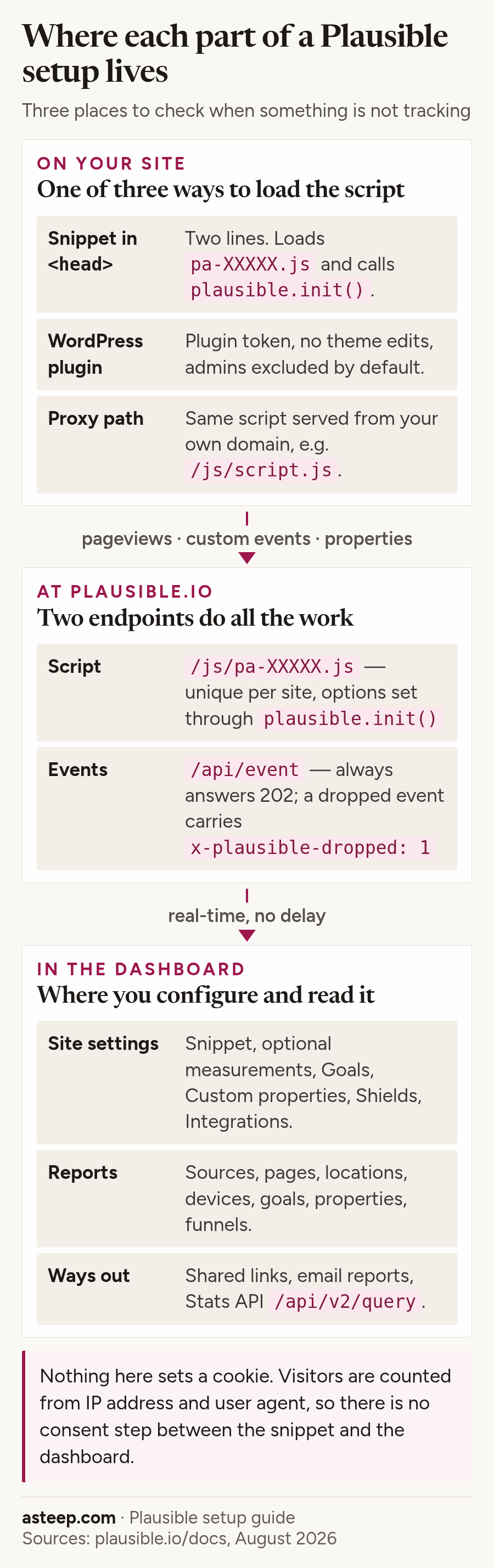
After you add the site, Plausible shows a tracking snippet unique to that site — the Plausible script plus a two-line bootstrap. It looks like this (your script filename will differ):
<script async src="https://plausible.io/js/pa-XXXXX.js"></script>
<script>
  window.plausible = window.plausible || function () { (plausible.q = plausible.q || []).push(arguments) },
  plausible.init = plausible.init || function (i) { plausible.o = i || {} };
  plausible.init()
</script>
Paste both tags into the <head> of every page you want tracked. Where that lives depends on your platform:
- Static HTML or a templated site: your base layout, before
</head>. - Next.js, Nuxt, Astro and friends: the root layout’s head, or the framework’s head component. Plausible also publishes an NPM package (
@plausible-analytics/tracker) if you’d rather import than paste. - Webflow, Squarespace, Wix, Shopify: each has a “custom code” or “code injection” area in settings with a head slot.
- WordPress: use the plugin. It’s covered in its own section below and there is no good reason to hand-edit
header.phpany more.
If you last set Plausible up before autumn 2025, you’re used to a one-line script.js tag with a data-domain attribute, and to swapping in variants like script.tagged-events.js or script.outbound-links.js for extra features. Plausible’s script update guide explains the change: each site now has its own pa-XXXXX.js file, and features are switched on either from site settings or with options passed to plausible.init(). The old snippet still runs, and Plausible’s own guide keeps it as the answer for one edge case (sending stats to several dashboards at once). But if you’re starting fresh, use the new one; the WordPress plugin, the proxy guides and the verification tool all assume it.
Turn on the optional measurements
In your site settings, under General → Tracking, you’ll find enhanced measurements. Three of them are on by default for a new site and don’t need any change to the snippet:
- Outbound links — every click on a link pointing off your domain, recorded as an “Outbound Link: Click” goal with the destination URL as a property.
- File downloads — clicks on links to PDFs, spreadsheets, archives, audio and video. Plausible tracks a fixed list of extensions by default (
pdf,xlsx,docx,zip,mp3,mp4and so on) and you can narrow it withfileDownloads: { fileExtensions: ['pdf'] }inplausible.init(). - Form submissions — successful submits of any form on the site, grouped under a single “Form: Submission” goal that you filter by page. For contact-form-heavy sites it removes the need to build a thank-you page just to have something to count.
The others in that panel (custom events, custom properties, 404 error pages, hash-based routing, revenue) need something in your code and get their own sections below. One billing note that Plausible states plainly on each of these docs pages: outbound link clicks, file downloads, form submissions, 404 events and any custom event all count towards your monthly pageview total. Pageview goals don’t. If you’re near a tier boundary, turn on what you’ll read and leave the rest.
The plausible.init() options in one place
Everything that used to be a script variant is now an option object. These are the ones I reach for:
| Option | Default | What it does |
|---|---|---|
endpoint |
https://plausible.io/api/event |
Where events are posted; change it when proxying |
outboundLinks / fileDownloads / formSubmissions |
false | Force the automatic measurements on from code rather than settings |
hashBasedRouting |
false | Treat /#/about style paths as separate pages |
customProperties |
{} |
Attach properties to every event; accepts an object or a function |
autoCapturePageviews |
true | Set false to fire pageviews yourself (Turbo, custom URLs) |
captureOnLocalhost |
false | Track during local development; off by default on purpose |
transformRequest |
– | Edit or drop the payload before it’s sent (redact URLs, strip the auto url prop) |
Can I use Plausible on WordPress without editing theme files?
Yes, and I’d go further: on WordPress you should not touch the theme at all. The official Plausible WordPress plugin injects the snippet, excludes your own logged-in visits by default, avoids the known conflicts with WP Rocket-style caching plugins, and gives you one-click toggles for the goals, revenue and proxy that would otherwise take code. Here’s how I set it up on client sites.
Install the plugin. Plugins → Add Plugin → search “Plausible Analytics” → Install and Activate. It’s the listing by Plausible itself in the WordPress.org directory.
Connect it with a plugin token. In the plugin’s settings, type your domain name exactly as you added it to Plausible (no https, no www). Then click the token link, which opens plausible.io, click Create Plugin Token, copy it, paste it into the Plugin Token field back in the WordPress dashboard and press Connect. Tokens are site-specific and always begin with plausible-plugin-; an “invalid token” error nearly always means the token was created for a different site. If the token link does nothing (some ad blockers eat the click), open https://plausible.io/YOURDOMAIN.COM/settings/integrations?new_token=WordPress directly.
Walk through the settings screen. The parts I always look at:
- Enhanced measurements: 404 error pages, file downloads, outbound links, form completions (tested by Plausible with Contact Form 7, WPForms, Ninja Forms and Elementor), site search queries, authors and categories as custom properties, logged-in status, hash-based routing, cloaked affiliate links, and which query parameters to keep.
- Ecommerce revenue: built-in for WooCommerce and Easy Digital Downloads. Toggle it and the plugin sends Add to Cart, Remove from Cart, Start Checkout, Complete Purchase (with revenue) and product-page visits, plus product properties, and assembles a purchase funnel. No code.
- View stats in WordPress: puts your Plausible dashboard under Dashboard → Analytics inside WordPress admin, visible to administrators by default and optionally to editors, authors and contributors.
- Exclude specific pages: comma-separated paths starting with
/, wildcards allowed (/staging*). - Track analytics for user roles: administrators are excluded by default, which is why your own visits don’t show up. Add or remove roles as you like.
- Enable proxy: the one-toggle ad-blocker bypass. More on that below, including the reset sequence you need after enabling it.
The plugin also lets you tag any block for custom event tracking without JavaScript: select the block, open Advanced, and add a class such as plausible-event-name=Signup+Submit in “Additional CSS class(es)”. Add plausible-event-position=footer alongside it and you’ve attached a property too.
How do I verify Plausible is working?
Open the dashboard as soon as the snippet or plugin is live. A banner at the top runs Plausible’s installation check: it fetches your site, looks for the snippet, sends test traffic (which is not recorded) and tells you whether visits are being counted. If it fails, the banner explains why and lets you re-run it or try another URL. You can relaunch the same tool from site settings any time you change the integration.
If the automatic check can’t reach your site (it’s behind a login, or the snippet only loads after a consent banner), verify by hand:
- View the page source (Ctrl+U) and search for
plausible.init. It should appear once, in the head, unmodified. - Open developer tools, reload the page, and in the Network tab look for a request to plausible.io whose name starts with
pa-. It should return 200. - Look for a POST to
/api/event. Plausible always answers 202, so check the response headers:x-plausible-dropped: 1means the event reached them but was rejected by bot filtering. Plausible’s troubleshooting page gives two usual causes: the request came from an IP range it treats as automated traffic (data-centre addresses, and the VPN exits that overlap with them), or, when events travel through a proxy or the Events API,X-Forwarded-Forcarried your server’s IP rather than the visitor’s. Not seeing the POST at all on your own machine? On localhost that’s expected: the script disables itself there unless you setcaptureOnLocalhost: true. - Go back to the dashboard. Real visits appear in the realtime view within seconds; there is no processing delay.
When nothing shows, the culprits I see most, in rough order of frequency:
- Cache. Page cache, CDN cache, WP Rocket. Purge everything after adding or changing the snippet.
- You’re the excluded one. Your ad blocker, VPN or the WordPress plugin’s admin exclusion is hiding your own visits. Test from a phone on mobile data.
- Two snippets. One from a plugin, one pasted into the theme. Stats double-count. Keep one.
- Content Security Policy. If you set one, add plausible.io to it.
- Consent-gated loading. A CMP that only loads Plausible after consent defeats the point of a cookieless tool. Load it unconditionally; Plausible’s troubleshooting page links to the legal assessment if your compliance team wants it in writing.
- Shields. If you’ve blocked IPs, hostnames, countries or pages under Shields, check you haven’t blocked yourself.
Set up goals: pageview goals and custom events
Pageviews, sources, pages, devices and locations flow in with no further work. Anything you’d call a conversion needs a goal, and it’s the part where I’ve watched the most people go wrong, usually by writing the tracking code first and never creating the goal in Plausible.
Pageview goals
A pageview goal counts visits to a path. Site settings → Goals → Add goal → Pageview, then type or pick the path, e.g. /thank-you. Wildcards work, so /checkout/* or /blog/* lets you treat a whole section as one goal. This is the right way to count form completions on any site that already redirects to a confirmation page, and it doesn’t touch your usage tier. You can also narrow a pageview goal by a custom property, so /dashboard visits only count where account_type=trial.
How do I track custom events in Plausible?
Custom events cover everything that isn’t a page load: button clicks, signups, purchases, video plays. There are two ways to send one, and both need a matching goal.
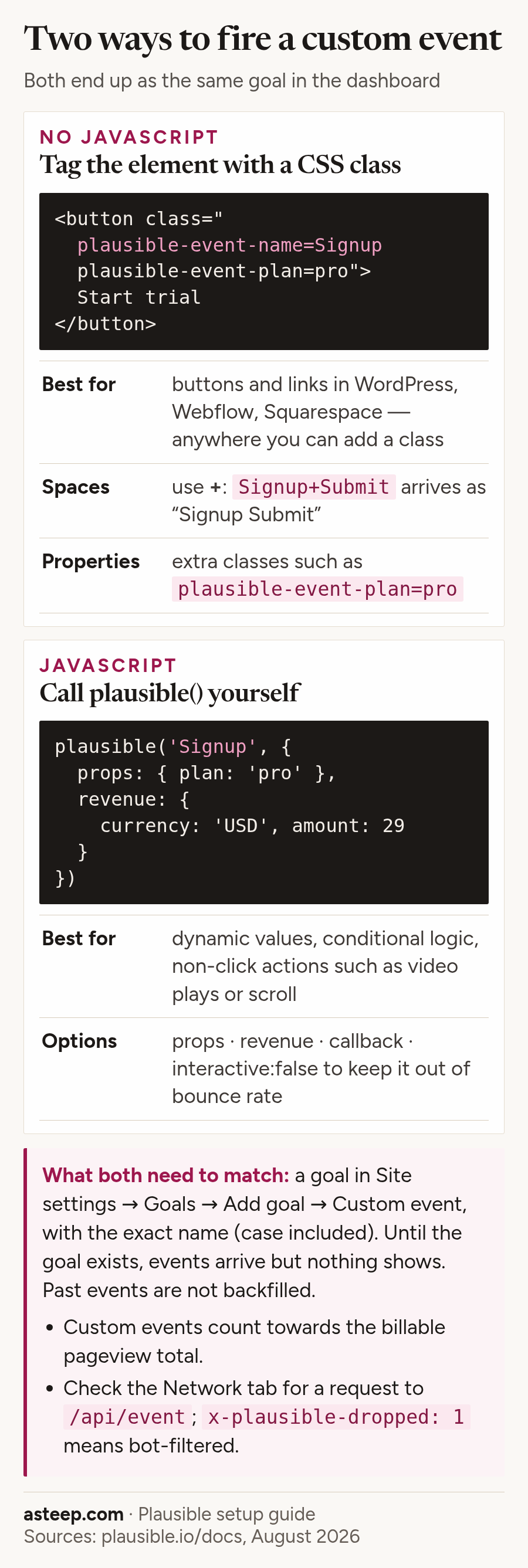
The CSS-class method needs no JavaScript. Add a class in the form plausible-event-name=Button+Click to the element. The + is recorded as a space, so the goal to create is “Button Click”. If your builder replaces the = with a hyphen (Webflow does), use a double dash instead: plausible-event-name--Signup. Plausible treats the two identically. Clicks on a tagged link automatically get the destination url attached as a property.
The JavaScript method is one function call:
document.getElementById('signup-btn').addEventListener('click', function () {
  plausible('Signup', { props: { plan: 'pro' } });
});
The second argument accepts props, revenue, a callback that fires after the event is logged or ignored, and interactive: false if you want an event (a timer, a scroll marker) excluded from bounce-rate calculations. Plausible’s custom event tracking reference has an audio/video example worth copying if you track media.
Then, and this is the part people miss, go to Site settings → Goals → Add goal → Custom event and enter the name. Character for character, capitalisation included. If you’ve already been sending events, Plausible shows a link under the Add goal button that adds all the unmatched ones in one go, which is a handy way to see what’s arriving. Nothing is backfilled: the counter starts when the goal is created, so create goals before you need them.
I go deeper on choosing which conversions deserve a goal, and how the same job looks in Umami and Matomo, in how to track goals and conversions without Google Analytics.
What are custom properties in Plausible?
Custom properties are key–value pairs you attach to a pageview or a custom event so you can filter and break down the dashboard by them: post author, page type, pricing plan, A/B variation, logged-in status, language, dark mode. If you’re coming from Google Analytics, they are the equivalent of custom dimensions. Two facts up front: custom properties are a Business plan feature (available during the trial), and you must not put personally identifiable information in them, which Plausible’s custom properties documentation spells out down to pseudonymous IDs.
On pageviews, set them in the snippet:
plausible.init({
  customProperties: { author: 'Jonathan Whitaker', type: 'guide' }
});
For values that change per page, pass a function instead of an object; it’s called for every event with the event name, so you can return properties for pageviews and nothing for the rest.
On custom events, add extra classes (plausible-event-plan=pro next to plausible-event-name=Sign+Up) or pass props in the JavaScript call, as in the signup example above.
Sending them is only half the job. Plausible custom properties don’t show in the dashboard until you switch each one on under Site settings → Custom properties; until then the data arrives and sits unseen. Plausible’s guide to segmenting by custom properties mentions a one-click option to add every property you’ve already sent, so my routine is to fire a handful of test events first and then add them all in one go.
The limits are generous: up to 30 properties per event, names up to 300 characters, values up to 2,000, and values can be strings, numbers or booleans (objects and arrays are rejected). If you see (none) in the Properties tab, you’re either sending an empty or undefined value, sending the property with some events but not others, or looking at the tab without a goal filter applied, in which case every plain pageview shows up as (none).
The feature I’d single out is property-filtered goals. When you create a custom event goal you can attach up to three property constraints, so “Pro Sign Up” counts only Sign Up events where plan=pro. That matters because every funnel step in Plausible has to be a goal rather than a bare event name: if a step should mean “clicked the Pro button” rather than “clicked any signup button”, you need the filtered goal first.
Don’t overdo it. I once configured fifteen properties on a store and looked at two of them. Start with the question you’re trying to answer and add the property that answers it.
Revenue, 404 pages and other extras
Revenue tracking (Business plan) rides on custom events. Create the goal with “Enable Revenue Tracking” switched on and pick a base currency, which can’t be changed afterwards. Then send the amount with the event, either as classes (plausible-revenue-amount=10.29 plausible-revenue-currency=EUR) or as revenue: { currency: 'USD', amount: 10.29 } in JavaScript. Plausible converts other currencies to your base and reports total and average revenue per source, campaign, page and property. Referral attribution stays clean because payment gateways don’t start new sessions, so Stripe and PayPal don’t steal credit for the sale.
404 error pages take one extra snippet. Add this to your 404 template (in WordPress, 404.php):
<script>
  document.addEventListener('DOMContentLoaded', function () { plausible('404'); });
</script>
Then create a custom event goal called 404. Filter the dashboard by that goal and the Top Pages report becomes a list of the broken URLs people are hitting, with the referrer that sent them.
Hash-based routing for single-page apps that use /#/route paths is plausible.init({ hashBasedRouting: true }). Custom URLs, for redacting IDs out of paths like /orders/48213, means setting autoCapturePageviews: false and calling plausible('pageview', { url: '/orders/…' }) yourself. And UTM campaigns need nothing at all: Plausible keeps utm_source, utm_medium, utm_campaign, utm_content and utm_term (plus ref and source) and strips every other query parameter. Just remember campaign attribution only applies to the first pageview of a session, so if you’re testing links, use a device that hasn’t visited in the last 30 minutes.
How do I bypass ad blockers with Plausible?
Plausible is blocked less than Google Analytics (Firefox and Safari don’t block it by default), but some blocklists block every analytics script regardless. Plausible’s own proxy guide puts the miss rate at typically 5–25% of visitors depending on your audience. On a developer-focused site I ran, the proxy lifted counted visitors noticeably; on a local-services site it made almost no difference. Measure before you decide it matters.
A Plausible proxy serves the script and receives the events through your own domain, as a first-party request. Four ways to get one:
- WordPress one-click. Plugin settings → Bypass adblockers → Enable proxy. It creates a randomly named endpoint under
/wp-jsonand a randomly named file in/wp-content/uploads/. After enabling it, or after migrating the site, follow Plausible’s reset sequence exactly: disable the proxy, clear all caches, re-enable it, clear all caches again. Skip a step and you’ll be serving a stale script. - Self-setup. A Cloudflare Worker (free up to 100,000 requests a day), a Vercel rewrite, a Netlify redirect, or an Nginx/Apache/Caddy location block. You point a path such as
/js/script.jsat yourpa-XXXXX.jsURL and another such as/api/eventathttps://plausible.io/api/event, then change the snippet’ssrcand passplausible.init({ endpoint: '/api/event' }). Avoid the words “plausible”, “analytics”, “tracking” or “stats” in the paths; blocklists match on them. - Managed proxy. An Enterprise option where you add a CNAME and Plausible runs it.
- None. Perfectly valid if a few percent of missing visitors doesn’t change any decision you’ll make.
One detail that bites custom proxies: the visitor’s real IP must arrive in the X-Forwarded-For header. If your proxy forwards its own server IP instead, Plausible’s bot filter drops the event and still returns 202. The Cloudflare and Vercel recipes handle this; a hand-rolled function needs the header set explicitly.
Connect Google Search Console
Google stopped passing search terms in the referrer years ago, so Plausible can only tell you “Google” as a source. The Google Search Console integration fills that gap: Site settings → Integrations → Continue with Google, sign in, and tick “View Search Console data for your verified sites” on the permissions screen. Miss that tick box and Plausible won’t see any properties. Then choose the property from the dropdown (entries starting sc-domain: are domain properties, the rest are URL-prefix ones) and save.
Plausible fetches queries, clicks, impressions, CTR and position from Google’s API each time you open the report and stores none of it; no Google code goes on your site. If you manage more than 50 sites, note Google’s cap of 50 live tokens per Google account; the 51st connection silently knocks out the first. Plausible’s Search Console guide lists the other causes of the “invalid grant” error.
Share the dashboard and invite the team
Sharing is where Plausible quietly beats most tools. Under Site settings → Visibility you can make your Plausible stats public, or create a shared link that anyone can open without an account. Two options on that link deserve attention: a password, which can only be set at creation (forget it and you delete and recreate the link), and “limit to segment”, which locks the viewer into a saved site segment they can’t remove. I use the segment lock for clients who should only see their own campaign traffic.
For colleagues who need to change settings rather than just look, invite them to a team with a role. Sharing links and team seats are why the Growth plan exists above Starter, so a solo blogger can stay on Starter and an agency will want Growth or above.
Pull data out with the Stats API and Events API
Two APIs, two directions. The Plausible Stats API (Business plan) reads: a single endpoint, POST https://plausible.io/api/v2/query, that takes a JSON query with site_id, date_range, metrics and optional filters and dimensions, and returns JSON. You create the API key under Account settings → API Keys, choose Stats API, and copy it once, because it isn’t shown again. Keys are rate-limited to 600 requests an hour by default. My weekly report script is a dozen lines around this call:
curl -X POST https://plausible.io/api/v2/query \
  -H 'Authorization: Bearer YOUR-KEY' \
  -H 'Content-Type: application/json' \
  -d '{"site_id":"yourdomain.com","metrics":["visitors","pageviews","bounce_rate"],"date_range":"7d","dimensions":["visit:source"]}'
The Events API writes: POST https://plausible.io/api/event with a JSON body of name, url and domain. It’s what the script itself calls, and it’s how you track a mobile app or send events from your server. Two headers decide whether unique visitors are counted correctly: the real User-Agent and, when the request comes from a backend, X-Forwarded-For set to the visitor’s IP. Add X-Debug-Request: true and Plausible replies with the IP it will use, which is the quickest way to prove your header plumbing works. Full field lists live in the Stats API reference and Events API reference.
What I’d do differently the second time
Decide on the proxy before launch, not after. Switching it on later means a step change in your visitor count that you’ll have to footnote in every month-on-month comparison.
Create goals on day one, even placeholder ones. Because there’s no backfill, every week you delay is a week of conversions you can’t recover.
Read weekly, not daily. A cookieless dataset on a small site is noisy day to day. Weekly trends are where the signal is. Let it steep.
Watch the events column on your usage page. Outbound links, downloads, forms and custom events all count towards the tier. A site with heavy download tracking can outgrow its plan while its pageviews stay flat.
Common questions
Does Plausible need a cookie banner?
No. Plausible sets no cookies and uses no local storage; unique visitors are counted from IP address and user agent, and its data policy states outright that you don’t need a cookie banner for analytics or consent for tracking. That is the reason to choose it, and it’s why I wrote about how consent banners break analytics data in the first place. Loading Plausible behind a consent gate throws the advantage away.
Do I need a credit card for the free trial?
No. Registration asks for a name, email and password. The 30-day trial has Business-plan features, converts to nothing automatically, and there’s nothing to cancel if you walk away.
Why are my own visits not showing up?
Almost always one of three things: an ad blocker or VPN on your machine, the WordPress plugin’s default exclusion of logged-in administrators, or a Shields rule you added earlier. Test from a phone on mobile data before assuming the install is broken.
Why are Plausible’s numbers lower than Google Analytics?
They measure differently. Plausible counts uniques without cookies, filters bots aggressively and isn’t affected by consent refusals; GA4 stitches sessions with cookies and has its own bot rules. Plausible’s troubleshooting page says a 10–20% gap is normal. Larger gaps usually mean GA4 is counting bot or consent-bypassed traffic that Plausible excludes.
Does the old script.js snippet with data-domain still work?
Yes for now. Plausible’s update guide still points to the old script for the one thing the new one dropped (sending to multiple dashboards). But new features and the verification tool are built around the per-site pa-XXXXX.js snippet, so migrate when you next touch the site.
How many custom properties can I send?
Up to 30 per event, with property names of up to 300 characters and values up to 2,000. Scalar values only, and never PII.
Once the install is verified and your first goals are counting, the natural next job is turning those numbers into a report someone will read; my weekly marketing report walkthrough uses the Stats API call above as its data source.

Jonathan Whitaker
Marketing analyst and CXL-certified optimizer with 6+ years of experience in web analytics, conversion optimization, and privacy-first data strategy. Former analytics lead for e-commerce and SaaS companies across North America, now focused on helping businesses make better decisions with less data. Specializes in Plausible, Umami, Matomo, and cookieless analytics. Based in Vancouver, BC.